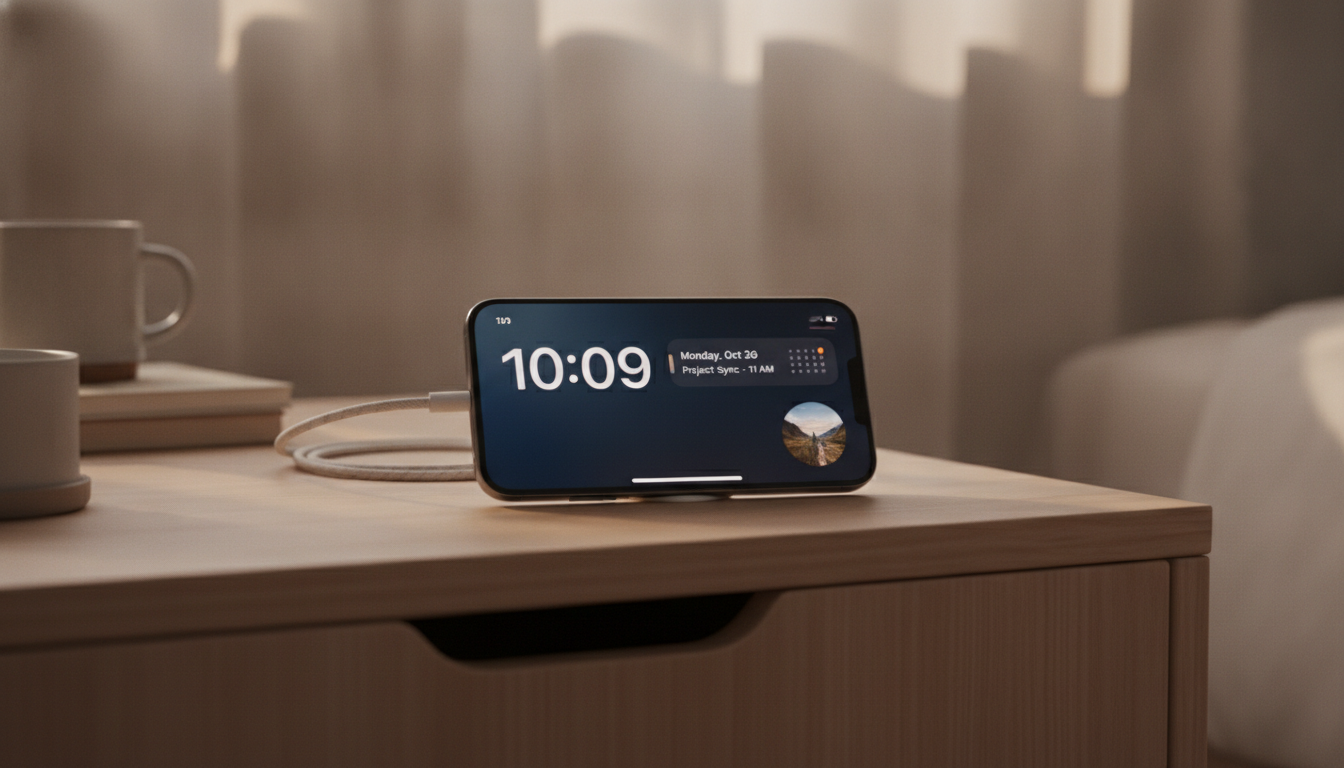
StandBy mode is one of the standout additions in recent iOS updates, giving iPhone users a practical, customizable smart display. When your iPhone is charging and placed sideways, StandBy mode transforms the device into a glanceable information hub. Whether you're looking for a bedside clock, widgets, or instant photo slideshows, StandBy mode brings new life to your iPhone while it charges. This guide will walk you through setup, customization, and ways to make the most of StandBy mode in your Apple-powered day.
What is StandBy Mode on iPhone?
StandBy mode is available on iPhones running iOS 17 or later. When activated, it turns your iPhone into a smart display as soon as you set it to charge in horizontal (landscape) orientation. This feature is optimized for use on nightstands, desks, or kitchen counters, allowing you to see essential information at a glance without having to pick up your phone. The display offers beautiful full-screen clocks, widgets, photo albums, and live activity updates. StandBy integrates deeply with the Apple ecosystem, showing updates from apps and services you use most.
How to Activate and Set Up StandBy Mode
- Update your iPhone to iOS 17 or later. Go to Settings, select General, then Software Update.
- Connect your iPhone to a charger using a Lightning cable or MagSafe charger.
- Place your iPhone in landscape orientation. The StandBy interface should appear automatically within seconds.
If StandBy mode isn’t appearing, check these steps:
- Open Settings.
- Scroll down and tap StandBy.
- Make sure StandBy is toggled on.
Some advanced features, like the always-on display, are available only on iPhone 14 Pro, iPhone 15 Pro, and later models. For other models, the StandBy screen dims or turns off after a short period but can be reawakened with a tap.
StandBy Mode Features: Clocks, Widgets, Photos, and More
- Full-Screen Clocks: Pick from several stylish analog, digital, and world clock faces. Great for a modern desk or classic nightstand look.
- Widgets: Access up-to-date info like weather, calendar appointments, reminders, battery status, and more. Swipe left or right to switch between widget sets.
- Photos: Show off your favorite moments with a rotating slideshow from your selected albums. Choose which albums to display in StandBy mode for a personal touch.
- Live Activities: Get real-time updates on events like music playback, countdown timers, or package deliveries right on the StandBy screen.
- Siri Integration: Use hands-free Siri commands to check information or control HomeKit devices while your iPhone is docked.
Notifications in StandBy mode are large and readable, making it easy to check texts, calls, or calendar alerts from across the room.
Customizing StandBy Mode to Fit Your Routine
StandBy mode is highly customizable. Here’s how you can make it your own:
- To edit widgets or clocks, long-press on any visible widget or clock face until edit mode appears.
- Tap the plus (+) icon to add new widgets. Remove widgets you no longer need by tapping the minus (-) icon.
- Swipe between different clock faces and widget stacks to find your preferred style and layout.
- Choose which photo albums appear by configuring your selection in the Photos app or within StandBy settings.
StandBy mode supports smart rotation. If you and another user (such as your partner) both have iPhones and Apple IDs, approaching from different angles can display personalized content for each user.
Optimizing Nightstand and Privacy Settings
- Night Mode: StandBy automatically detects darkness and switches to a red-tinted interface. This helps reduce eye strain and keeps the room dim, ideal for nighttime use.
- Notifications and Privacy: Notifications can be displayed while in StandBy mode, but sensitive content remains hidden until Face ID confirms your identity.
- Always-On Display: On iPhone 14 Pro, iPhone 15 Pro, and later, StandBy remains visible at a glance, even when your iPhone would usually dim the screen. For other models, the display will turn off, but you can wake it with a tap or movement.
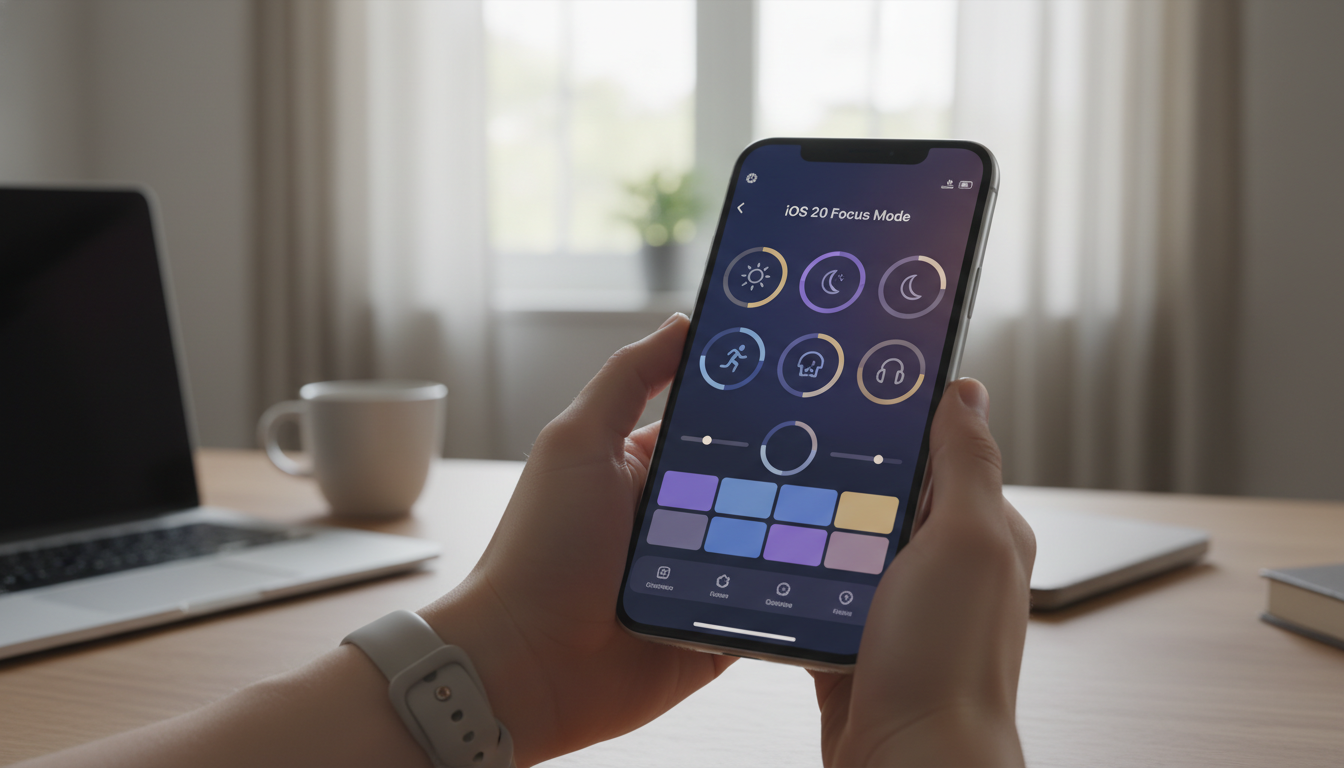
If you want to limit which notifications appear in StandBy, adjust your notification settings and configure Focus modes that fit your routine, such as Sleep or Work Focus.
Recommended Accessories for StandBy Mode
To get the most from StandBy mode, consider investing in a MagSafe-compatible charging stand. These stands keep your iPhone stable in landscape orientation and deliver fast wireless charging. Apple's official MagSafe Charger is a reliable choice, but many third-party brands also offer well-designed stands with MagSafe compatibility. Look for features like adjustable angles or elevated bases for the best viewing experience on your nightstand or desk.
Tips for StandBy Power Users
- Siri Shortcuts: Set up automations to activate specific widgets or perform routines when your iPhone is placed on the charger at certain times.
- HomeKit Integration: Use StandBy to display live views from HomeKit-enabled cameras or control smart home accessories directly from the StandBy interface.
- Focus Modes: Create custom Focus modes so StandBy only shows select widgets or information when you’re working, relaxing, or sleeping.
Experiment with these settings to see what fits your lifestyle. StandBy’s flexibility supports both simple setups and advanced customizations for users deep in the Apple ecosystem.
Troubleshooting StandBy Mode Issues
- Double-check your iPhone is updated to iOS 17 or newer.
- Verify that StandBy is enabled in the Settings app.
- Use an MFi-certified charging stand or a reliable MagSafe charger to ensure proper orientation detection.
- If StandBy does not appear, restart your iPhone. As a last resort, reset your settings in Settings > General > Transfer or Reset iPhone.
Occasionally, StandBy mode may not trigger if your charger or stand does not hold the iPhone securely in landscape. Make sure your accessory is designed for horizontal positioning and for your model.
Why StandBy Mode is Worth Using
StandBy mode brings added utility and style to your iPhone. By combining widgets, clocks, photos, and live activity updates, it makes your device useful even while charging. Whether you want an attractive nightstand clock, quick weather insights, or easy access to smart home controls, StandBy mode adds convenience and a personal touch to your daily routine. For anyone invested in the Apple ecosystem, StandBy mode is a simple upgrade that turns your iPhone into a dynamic smart display whenever it is docked and charging.