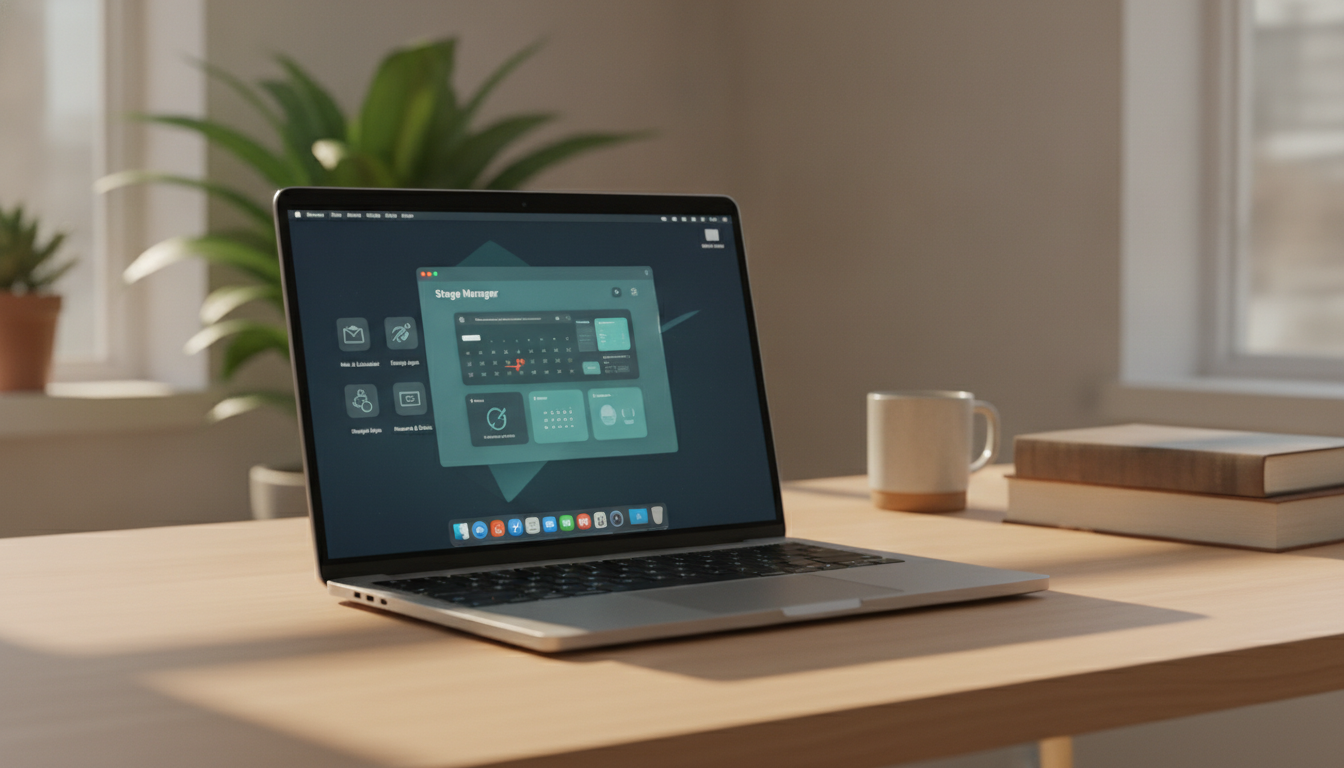
Apple's Stage Manager for Mac has transformed multitasking, offering a smarter way to organize windows and streamline productivity. By 2026, Stage Manager is deeply integrated into macOS, boasting powerful features and new ecosystem connections. Whether you’re a professional, student, or anyone seeking efficiency, this guide will help you maximize Stage Manager’s potential with advanced tips and practical strategies.
Understanding Stage Manager on Mac
Stage Manager debuted in macOS Ventura and has evolved into a sophisticated window management tool. Instead of dealing with scattered or overlapping windows, Stage Manager lets you group open apps into dedicated clusters called stages. You can switch tasks quickly, keep projects organized, and maintain a clean desktop. This is especially valuable for Mac users juggling multiple workflows or collaborating across devices.
- Stages: Each stage holds a set of windows for a specific task or project.
- Quick Switching: Move between tasks with a single click or shortcut.
- Clutter Reduction: Only the active stage is visible, keeping distractions to a minimum.
Stage Manager is ideal for writers, designers, developers, and anyone who relies on multiple apps and documents during their day-to-day work.
Advanced Stage Manager Features in 2026
The latest versions of macOS offer advanced Stage Manager functionality that goes beyond basic window organization. Here’s what power users can leverage in 2026:
- Custom Stage Groups: Name and organize stage groups for different workflows, like 'Design', 'Research', or 'Client Calls'. This allows fast context switching and clearer project boundaries.
- Drag-and-Drop Improvements: Effortlessly move files between app windows. Drag a document from Finder onto a stage, and the relevant app opens in context - reducing friction when managing files.
- Enhanced Shortcuts: Cycle through stages, merge windows, and activate Stage Manager using newly expanded keyboard shortcuts, minimizing reliance on the mouse.
- Cross-Device Sync: Stage Manager setups now sync across Mac and iPad using iCloud. Start a project on your MacBook and seamlessly continue on your iPad Pro.
These enhancements make Stage Manager more flexible and powerful for users working on complex projects, frequent multitaskers, and those who value continuity across Apple devices.
Structuring Your Workflow: Practical Approaches
Setting up Stage Manager effectively starts with identifying your main daily tasks or projects. Create dedicated stage groups for each workflow. For example:
- Writers: Separate stages for 'Research', 'Drafting', and 'Editing', with Safari, Notes, and Pages or Word in each group.
- Designers: Stages for 'Sketching', 'Photo Editing', and 'Client Review', each with relevant creative tools.
- Students: Stages like 'Lecture Notes', 'Assignments', and 'Exam Prep', grouping educational apps and resources.
Within each stage, add the relevant windows and apps, keeping groups focused and easy to manage. This approach minimizes desktop clutter and ensures you’re always working in the right context.
Integrating Stage Manager with Apple Ecosystem Features
Stage Manager stands out for its tight integration with Apple’s wider ecosystem. Leveraging these connections can further enhance your workflow:
- Universal Control: Move files and your cursor between Mac and iPad, maintaining consistent stages across devices.
- Focus Modes: Link specific stage groups to macOS Focus modes. When you activate 'Work Focus', your productivity-related stages load automatically.
- Shortcuts Automation: Use Apple Shortcuts to automate opening apps and arranging windows within custom stage groups at the start of your day.
These integrations make it possible to tailor your Mac environment to your exact needs, saving time and reducing distractions.
Expert Tips for Power Users
If you want to push Stage Manager’s capabilities even further, these advanced tactics will help:
- Window Snap and Layouts: Quickly align your workspace by holding Command and dragging windows to the edges of your stage.
- Stage Templates: Save recurring stage setups as templates. For example, a 'Meeting' template launches your calendar, note-taking app, and relevant project documents at once.
- App Exclusions: Configure exclusions in System Settings to keep distracting apps out of Stage Manager.
- Custom Shortcuts: Assign shortcut keys for rapid switching between your most-used stage groups.
Mastering these tricks can make your workflow faster and more fluid, especially if you manage multiple projects or frequently switch contexts.
Collaborative Features: Stage Manager for Teams
In 2026, Stage Manager now supports collaborative stages via iCloud. Teams can share a stage group, joining the same set of windows for group projects, video calls, or brainstorming sessions. This is particularly powerful for remote teams or collaborators using multiple Macs.
To share a stage group, right-click and select 'Share via iCloud'. Invite colleagues, and everyone can join the shared stage, seeing updates in real time. Combined with FaceTime and Messages integration, this feature makes collaborative work smoother and more interactive within the Apple ecosystem.
Common Pitfalls and Solutions
Despite its strengths, Stage Manager can introduce challenges if not used thoughtfully. Watch out for these issues:
- Overloading Stages: Avoid adding too many windows to a single stage. Keep groups focused for better efficiency.
- Neglecting Shortcuts: Learn keyboard shortcuts to prevent slow navigation and maximize speed.
- Ignoring Sync Settings: Make sure iCloud sync is enabled, so your stages are available across devices.
Regularly review your stage groups and adjust them as your needs change. This helps maintain an organized workflow and prevents clutter.
Getting Started: Best Practices for New Users
If you’re new to Stage Manager, begin by creating three or four stage groups based on your main tasks. Practice switching between groups and customizing window layouts. As you get more comfortable, expand your setup and experiment with advanced features like templates and shortcuts.
Keep stages lean and organized, deleting groups that are no longer needed. For troubleshooting, check macOS System Settings for guidance and updates.
The Future of Stage Manager on Mac
Apple continues to refine Stage Manager, with hints of tighter integration between Macs, iPads, and possibly even iPhones. Coming updates may bring more automation, smarter window management, and richer collaboration tools. By learning Stage Manager’s advanced features now, you’ll be ready to take advantage of upcoming enhancements in macOS.
Stage Manager is more than just a productivity aid. It’s a gateway to a streamlined, organized, and connected workflow on the Mac. With these expert tips, you can unlock its full potential and create an environment that works for you.